Brands
Brands are the organizations that provide tours and events. Each Item belongs to a Brand, and Packages are connected to Items to show which Brand is offering which Package.
Navigating to the Brands Page
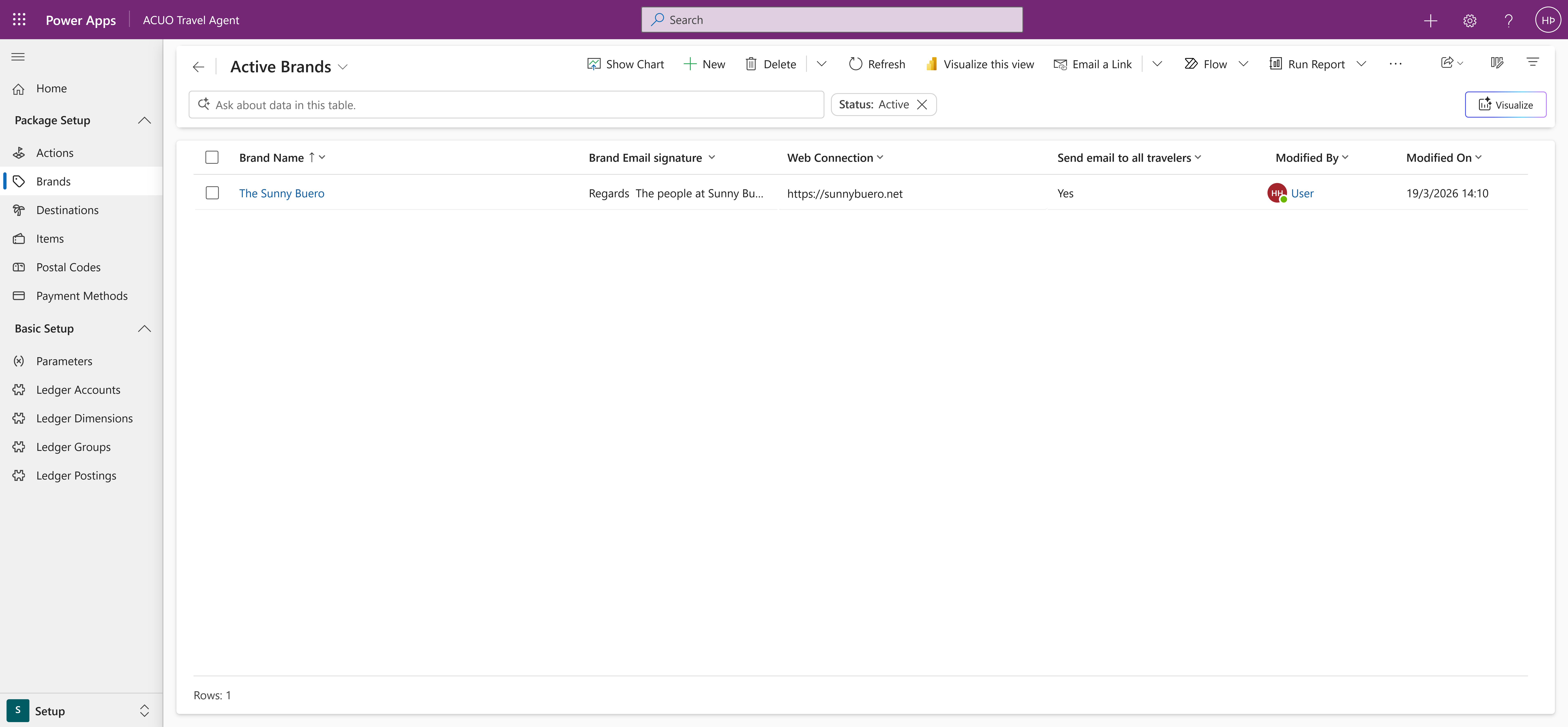
The main Brands page provides an overview of all existing brands within the system. From here, you can view, manage, and create new brands.
Creating a New Brand
To create a new brand, click on the New button in the command bar. This will open the form for a new brand.
Defining the Brand Details
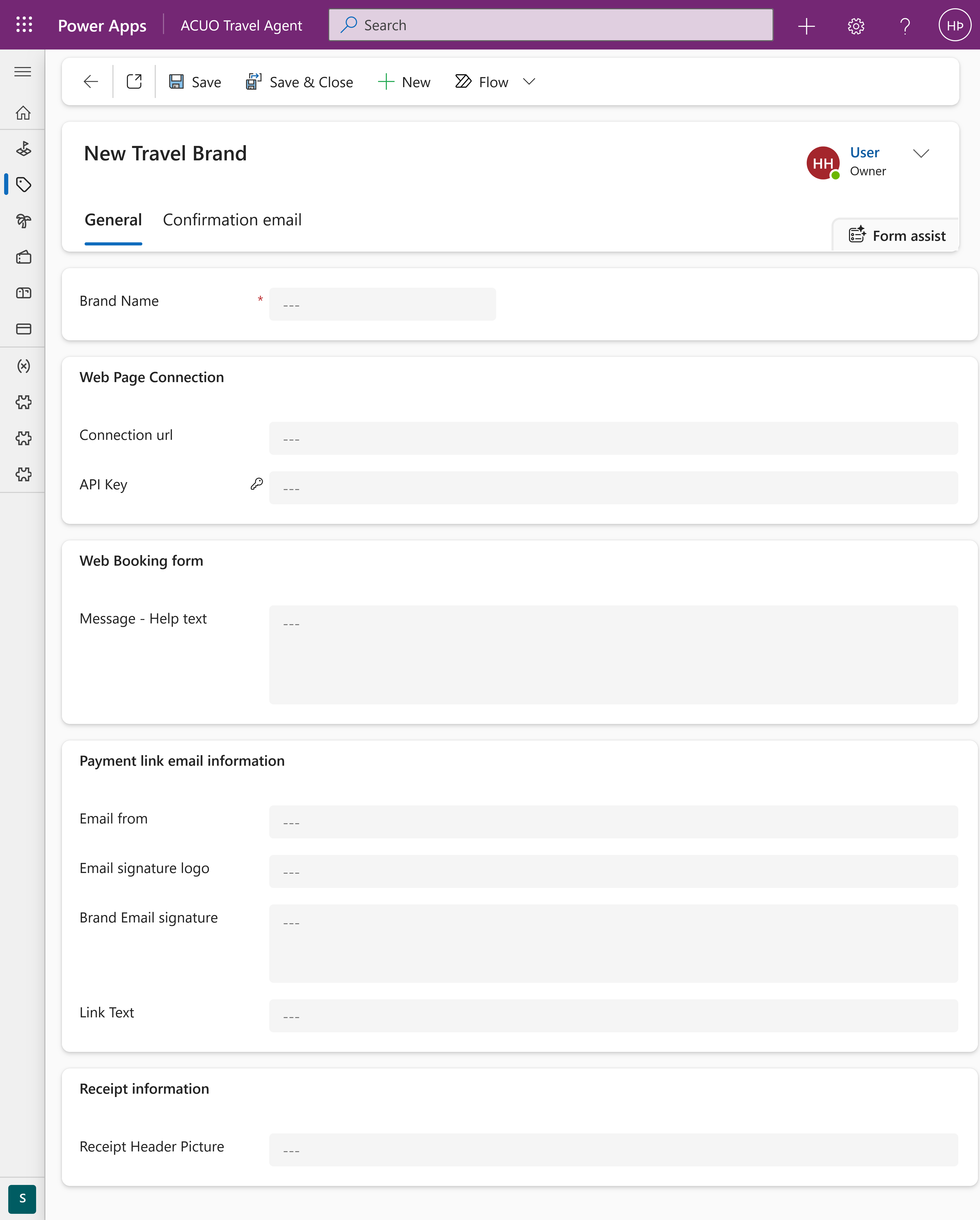
In the New Brand window, you need to fill in the details for the brand. This page is divided into four main sections: Web Page Connection, Web Booking form, Payment link email information, and Receipt information, and then one other tab Confirmation Email.
Web Page Connection
This section is used to manage connections to different WordPress websites. You can also configure a Help Text field that will be displayed on the booking form.
- Connection url: The URL of your brand's website you want to connect to.
- API Key: The API key provided by the website for authentication.
Web Booking Form
In this section, you can configure the settings for the web booking form:
- Message - Help text: A message that will be displayed on the booking form to assist users.
Payment Link
This section allows you to configure the email settings for payment links:
- Email From: The email address that will appear as the sender.
- Email Signature Logo: A URL to an image that will be used as the logo in the email signature.
- Brand Email Signature: The text that will appear at the end of the email.
- Link Text: The text that will be displayed for the payment link instead of the full URL.
Receipt Information
Here you can keep the information that will be used to populate receipts sent to customers after booking:
- Receipt Header Picture: A URL to an image that will be used as the header picture on the receipt.
Confirmation Email
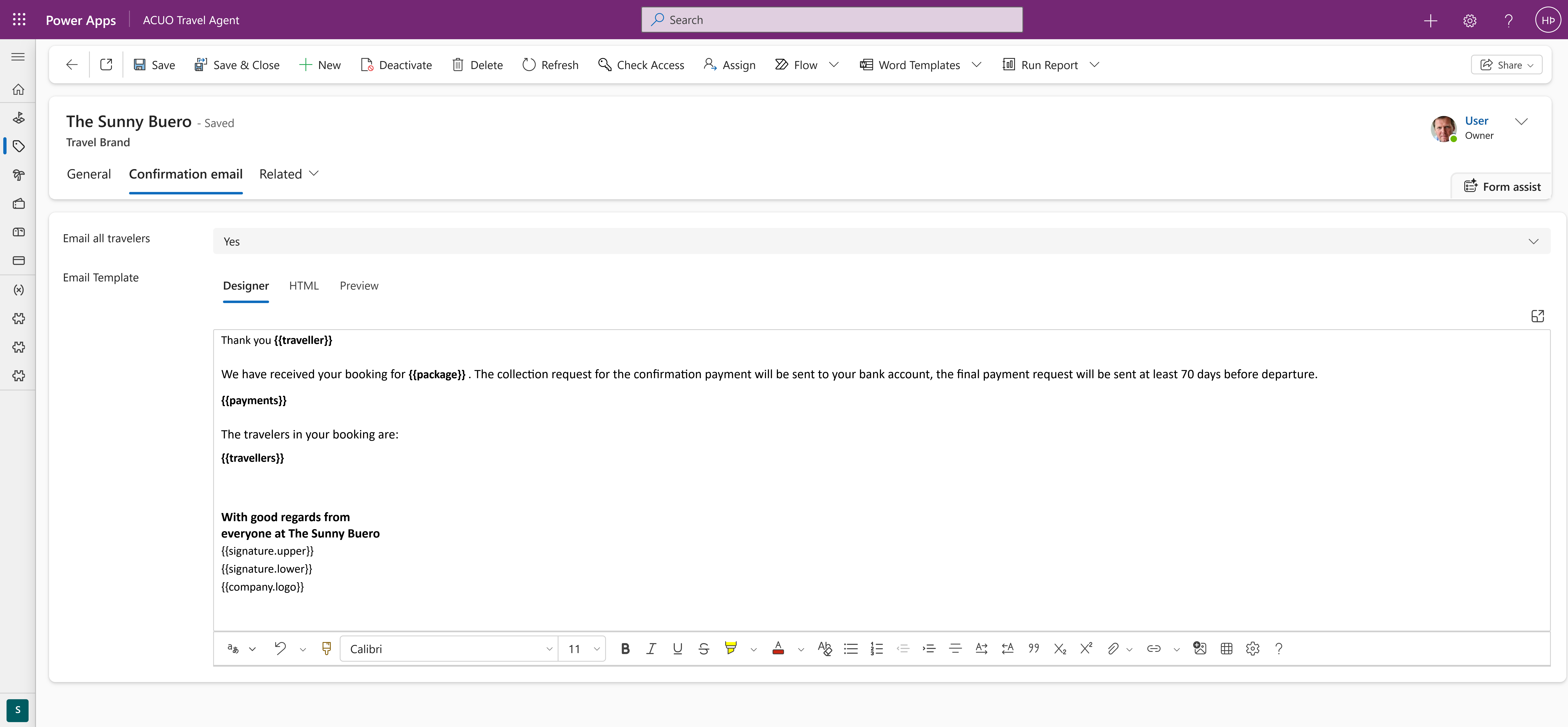
Here you can customize the email that customers receive upon booking confirmation. You can modify the subject line and the body of the email to better fit your brand's voice and style.
- Email all travelers: Check this box if you want the confirmation email to be sent to all travelers associated with the booking - not only the payer of the booking.
- Email Template: Customize the content of the confirmation email using the provided text editor.
- You can use placeholders like
{TravelerName},{BookingDetails}, etc., to personalize the email content. - List of available placeholders:
{{traveller}}: Inserts the name of the traveler.{{travellers}}: Inserts the details of the booking.{{payments}}: Inserts the payment link for the booking.{{signature.upper}}: Inserts the upper section of the email signature.{{signature.lower}}: Inserts the lower section of the email signature.{{company.logo}}: Inserts the company logo image.
- You can use placeholders like
Related Resources
Payment Methods
Configure payment methods and email templates.
External Resource
Description of the external resource
Need help? If you encounter any issues or have questions, please refer to our FAQ or contact support.