Packages Table
View and manage travel packages in the Travel Agent WordPress plugin.
The Packages Table feature in the Travel Agent WordPress plugin provides a comprehensive view of all travel packages. It allows you to easily view, manage, edit, and organize your packages directly from the WordPress admin dashboard.
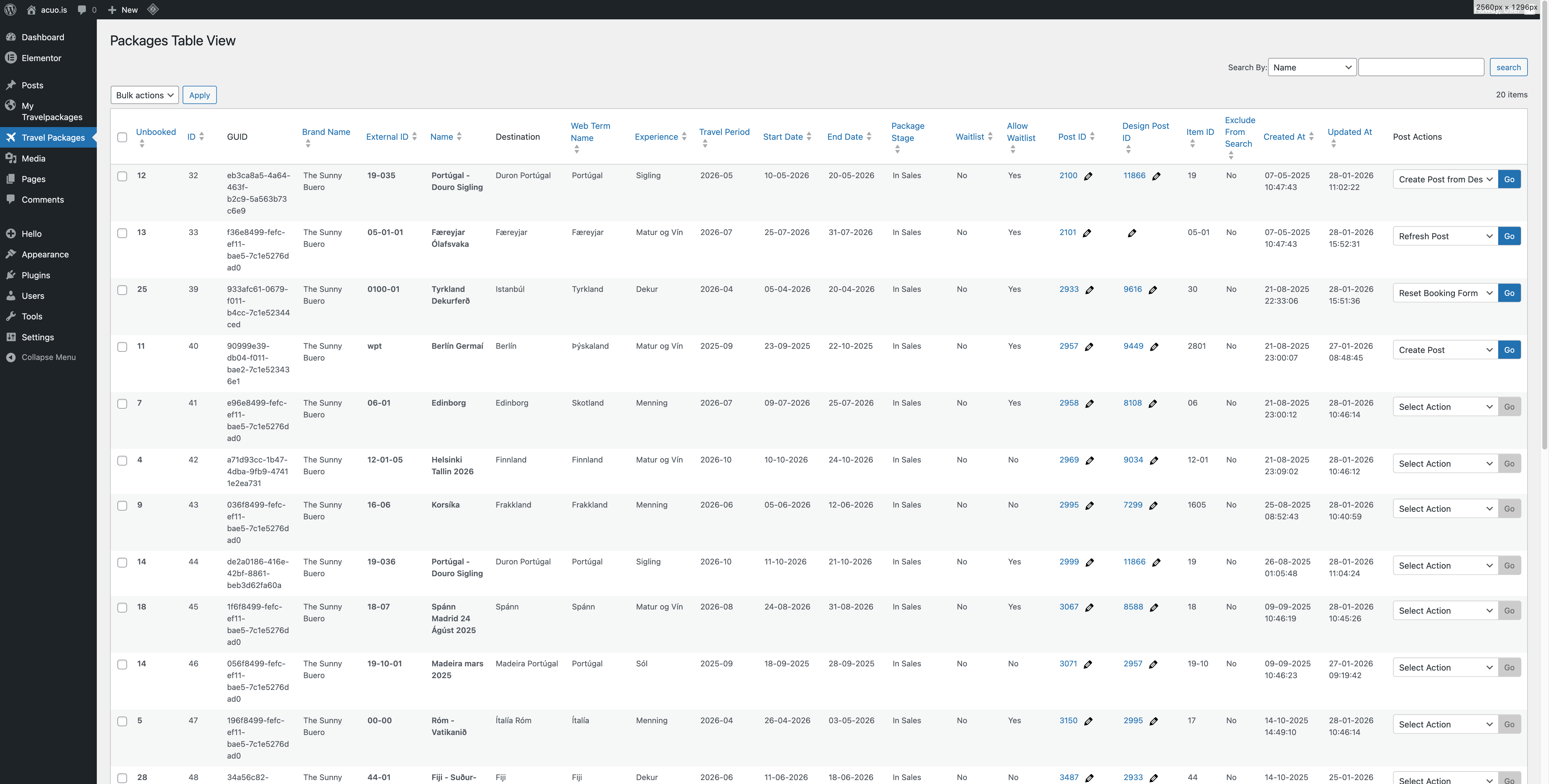
Key Features
- Full Overview: See all your packages in one place with details like name, destination, dates, and status.
- Easy Management: Quickly edit package post ID, design template ID, and other key attributes directly from the table.
- Bulk Actions: Perform bulk actions such as deleting multiple packages.
- Package Specific Actions: Each package row includes action buttons for creating, resetting, refreshing posts, and more.
- Search and Filter: Easily find specific packages using the search bar and filters.
Table Columns
- Package ID: Unique identifier for each travel package.
- Package GUID: Global Unique Identifier for the package.
- Brand Name: The brand associated with the travel package.
- External ID: An external reference ID for the package.
- Package Name: The name of the travel package.
- Destination: The destination of the travel package.
- Experience: The type of experience offered by the package (e.g., adventure, relaxation).
- Travel Period: The duration of the travel package.
- Start Date: The start date of the travel package.
- End Date: The end date of the travel package.
- Package Stage: The current stage of the package (e.g., draft, published).
- Waitlist: Indicates if the waitlist is currently active for the package, and in turn also tells you if the package is fully booked.
- Allow Waitlist: Indicates if waitlisting is allowed for the package.
- Post ID: The WordPress post ID associated with the package.
- Template ID: The design template ID used for the package page.
- Item ID: The item ID associated with the package.
- Created At: The date and time when the package was created.
- Updated At: The date and time when the package was last updated.
- Actions: Buttons for creating, resetting, refreshing posts, and other package-specific actions.
How to Access
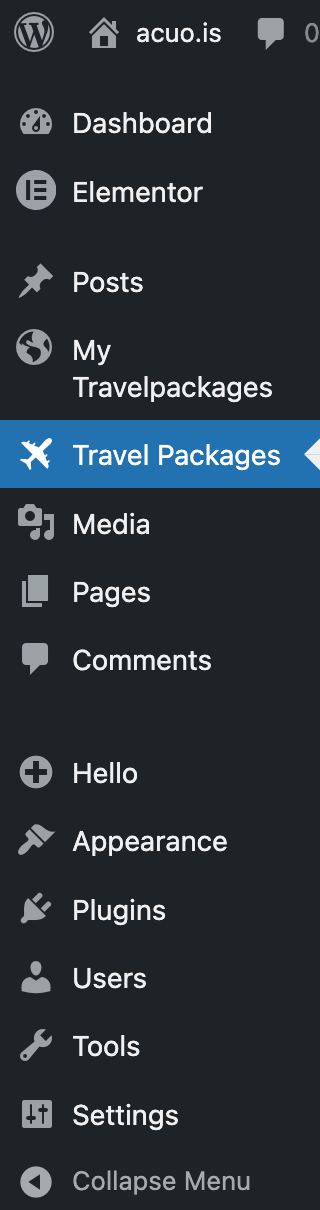
- Log in to your WordPress admin dashboard.
- On the side menu, navigate to "Travel Packages".
Managing Packages
- Edit Package: You can only edit the Post ID and Template ID directly from the table. To do so, click on the pencil icon next to the respective field and when done, click the checkmark icon to save your changes.
- Bulk Delete: Select multiple packages using the checkboxes on the left and choose "Delete" from the bulk actions dropdown to remove them.
- Package Actions: Use the action buttons in the "Actions" column on the right to create a new post, reset the post, or refresh the post for each package.
- Search and Filter: Use the search bar and filters at the top of the table to quickly find specific packages based on various criteria.
Actions Explained
- Refresh Post: Updates the details in the WordPress post associated with the package and the booking form element in it with the latest package information (only available if the package has a post).
- Reset Post: Resets the booking form element in the WordPress post associated with the package to its default state (only available if the package has a post).
- Create Post: Creates a new WordPress post for the package without using the selected design template. If a post already exists, the action will delete the existing post and create a new one.
- Create Post with Template: Creates a new WordPress post for the package using the selected design template. If a post already exists, the action will delete the existing post and create a new one (only available if the package has a design template ID).
- Create Post with Default Template: Creates a new WordPress post for the package using the default design template set in Settings → Travel Agent → API → Package Page Template. If a post already exists, the action will delete the existing post and create a new one (only available if a default design template is set).