Package List
Elementor widget to display travel packages and booking forms in a customizable list format.
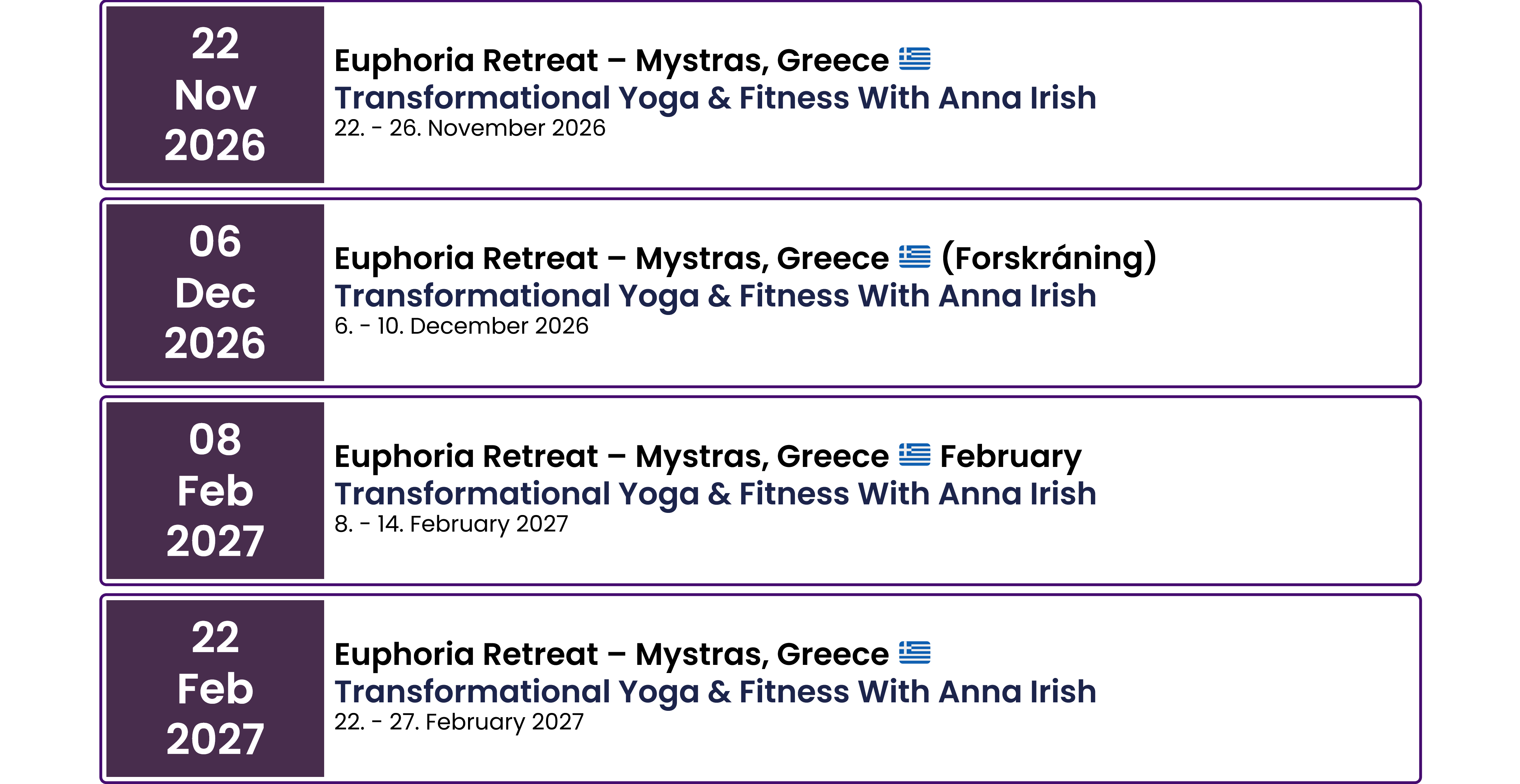
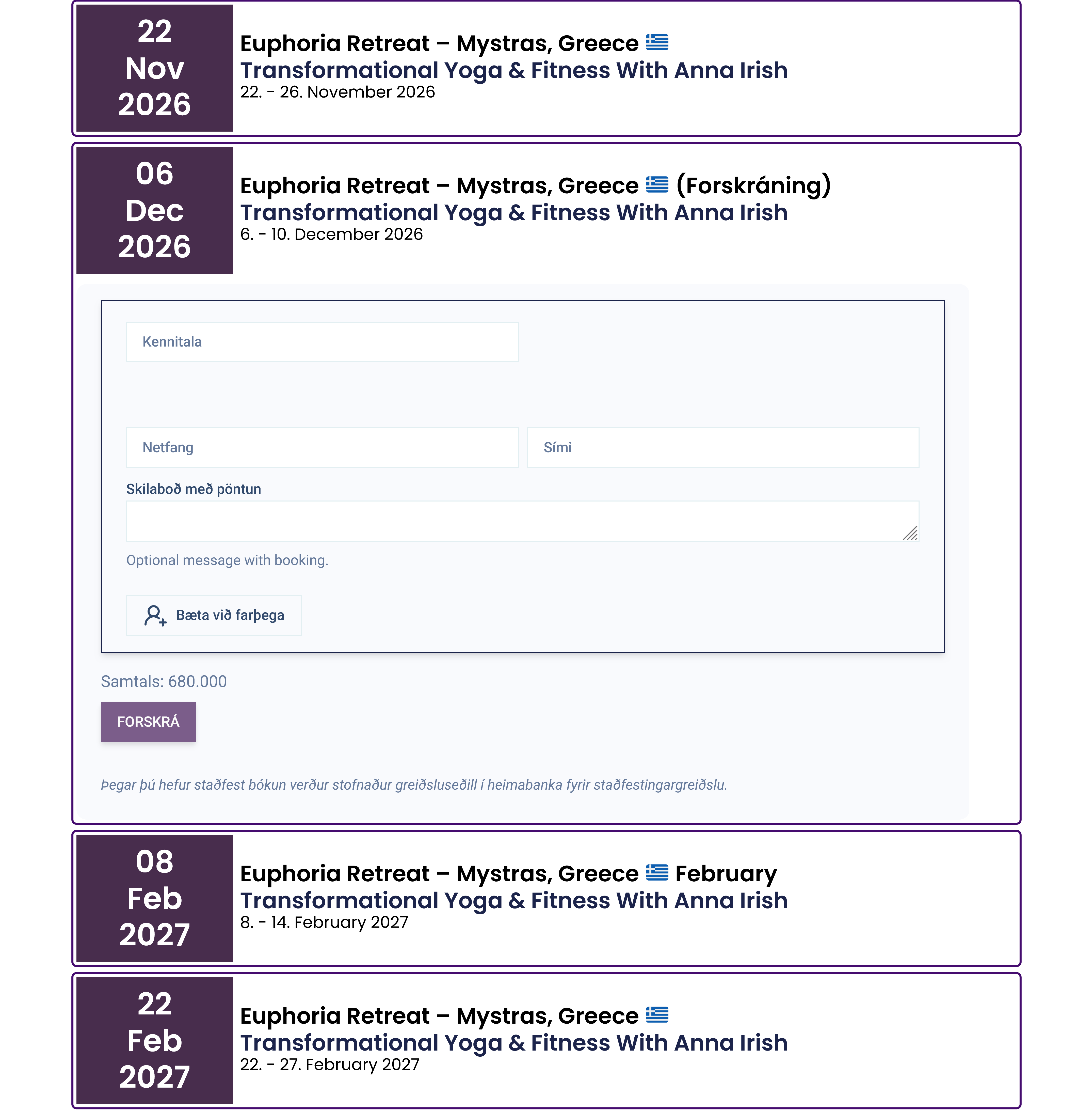
The Package List feature in the Travel Agent WordPress plugin allows you to display travel packages in a customizable list format using the Elementor page builder. This widget provides an easy way to showcase your travel offerings and includes a booking form for user convenience.
Key Capabilities
- Customizable Layout: Adjust the layout to fit your design needs.
- Integrated Booking Form: Each package includes a booking form, streamlining the reservation process.
- Responsive Design: The list is fully responsive, ensuring a great experience on all devices.
Configuration
Content Options
- Item ID: The unique identifier for the item the packages to be displayed are under.
- Iframe URL: The URL to be used for the iframes under each package (this will usually be the web bookings URL).
- Show Title: Toggle to show or hide the package title.
- Show Start Date: Toggle to show or hide the package start date.
- Show Date: Toggle to show or hide the package date range.
- Show Description: Toggle to show or hide the package description.
- Show Message: Toggle to show or hide the package message.
- Show Custom Text: Toggle to show or hide the custom text.
- Content Order: Choose the order of content elements (e.g.,
Title, Date, Description, Message, Custom Text). - Custom Text: Add custom text to be displayed with each package.
Style Options
General
-
Normal Tab
- Background Type: Choose
None,Classic, orGradient. - Border Type: Choose
None,Solid,Double,Dotted,Dashed, orGroove. - Border Radius: Adjust corner roundness.
- Box Shadow: Add a shadow effect.
- Background Type: Choose
-
Hover Tab
- Background Type: Same options as Normal.
- Border Type: Same options as Normal.
- Border Radius: Same options as Normal.
- Box Shadow: Same options as Normal.
- Scale on Hover: Enable a zoom effect on hover.
- Animation Duration: Time (ms) the hover transition takes.
-
Width: Set the overall width of the package list container.
-
Height: Set the overall height of the package list container.
-
Padding: Inner spacing of the container.
-
Margin: Outer spacing around the container.
-
Item Horizontal Alignment: Align items to
Left,Center,Right, orSpace Between. -
Items Gap: Set the spacing between individual package items.
-
Typography: Set font family, size, weight, and style for general text.
-
Text Alignment: Align text (
Left,Center,Right) for all elements except Title and Start Date.
Start Date Banner
- Background Type: Choose between
None,Classic, orGradient. - Border Type: Choose between
None,Solid,Double,Dotted,Dashed, orGroove. - Border Radius: Adjust the border radius for rounded corners.
- Start Date Typography: Customize font family, size, weight, and style for the start date text.
- Start Date Text Color: Set the text color for the start date.
- Start Date Width: Set the width of the start date banner.
- Start Date Padding: Adjust the padding inside the start date banner.
- Start Date Margin: Adjust the margin around the start date banner.
Package Details
- Details Padding: Adjust the padding inside the package details section.
- Details Margin: Adjust the margin around the package details section.
- Title Typography: Customize font family, size, weight, and style for the title text.
- Title Color: Set the text color for the title.
- Title Alignment: Align the title text to
Left,Center, orRight. - Date Typography: Customize font family, size, weight, and style for the date text.
- Date Color: Set the text color for the date.
- Description Typography: Customize font family, size, weight, and style for the description text.
- Description Color: Set the text color for the description.
- Message Typography: Customize font family, size, weight, and style for the message text.
- Message Color: Set the text color for the message.
Iframe
- Iframe Width: Set the width of the iframe (e.g.,
100%,600px). - Iframe Height: Set the height of the iframe (e.g.,
100%,100vh). - Dynamic Resize: Enable automatic adjustment of the iframe height to match its content (requires the Travel Agent booking page).
Booking Form
Same options as the Booking Form Element.
Usage
- Ensure you have the Elementor page builder installed and activated on your WordPress site.
- Create or edit a page using Elementor.
- Search for the Package List widget in the Elementor sidebar and drag it to your desired section on the page.
- Set the Item ID and Iframe URL in the Content tab to specify which packages to display and where the iframe should point.
- Now you should see some packages appear in the preview and can configure the rest of the content and style options in the Elementor sidebar to customize the package list to your liking.
- Publish or update the page to make the package list live on your site.